
Getting Started
HubSpot integration
Explore More
image-icon
Getting Started

Everything you need to know to get started and boost productivity with Cooby.

A G 38 articles by 2 authors
image-icon
Getting Started

Everything you need to know to get started and boost productivity with Cooby.

A G 38 articles by 2 authors
image-icon
Getting Started

Everything you need to know to get started and boost productivity with Cooby.

A G 38 articles by 2 authors
image-icon
Getting Started

Everything you need to know to get started and boost productivity with Cooby.

A G 38 articles by 2 authors
image-icon
Getting Started

Everything you need to know to get started and boost productivity with Cooby.

A G 38 articles by 2 authors
image-icon
Getting Started

Everything you need to know to get started and boost productivity with Cooby.

A G 38 articles by 2 authors
image-icon
Getting Started

38 articles

image-icon
Getting Started

Everything you need to know to get started and boost productivity with Cooby.

A G 38 articles by 2 authors
image-icon
Getting Started

38 articles

Getting Started

Everything you need to know to get started and boost productivity with Cooby.

A G 38 articles by 2 authors

Purpose

Arch is a WhatsApp extension that can help you organise and automate your WhatsApp account. It can be used for business purposes. Arch connects with your HubSpot CRM. Your WhatsApp chats sync to HubSpot CRM. You can share your conversation in one place, and you can create deals, meetings, notes, and tasks using the Arch WhatsApp Extension.

logo
Table of Contents

Installation

To install the Arch Chrome extension, you can do the following:

  • Open the Chrome web store for
  • Find and select the Arch extension. You can find it here
  • Click add to chrome
  • Click Add extension to your browser
  • Select the three vertical dots in the upper-right corner of the address bar to a menu of option
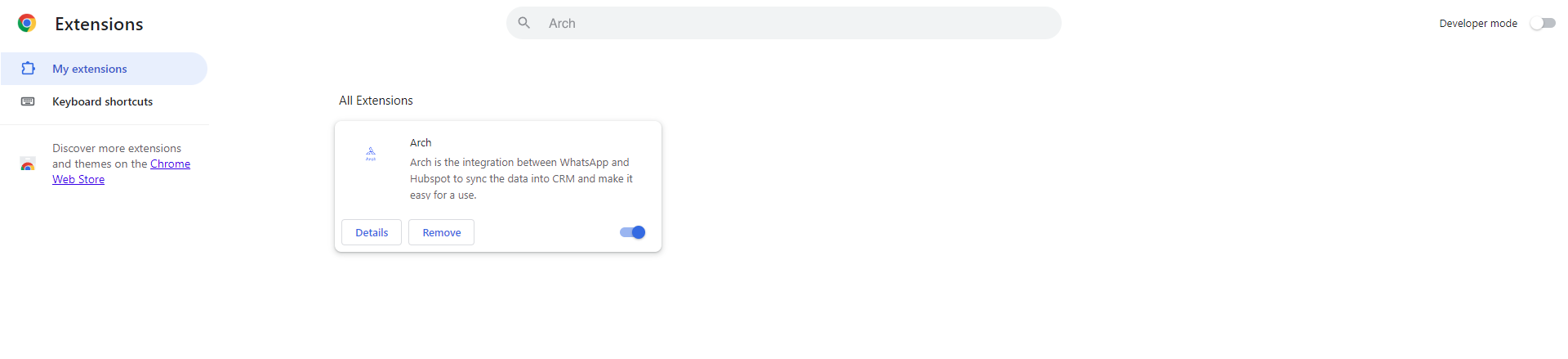
  • Click on the extension menu and go to Manage Extension.
  • Search your extension by default; it's on but if not, then click on the On button.
  • Extensions
  • You can remove an extension from Chrome.
  • After installation, you’ll be searched in Chrome for WhatsApp Web.
  • Go on your mobile device and open WhatsApp Business
  • Click on the three-dot menu icon.
  • Go to the linked device
  • Click on the link for the device
  • Scan the QR code on the WhatsApp web page on your computer screen using your mobile device’s camera.
  • After that, scan the QR code on the WhatsApp web screen to load your WhatsApp account on a computer or laptop.
Table of Contents

Setup

  • After opening your account in your system.
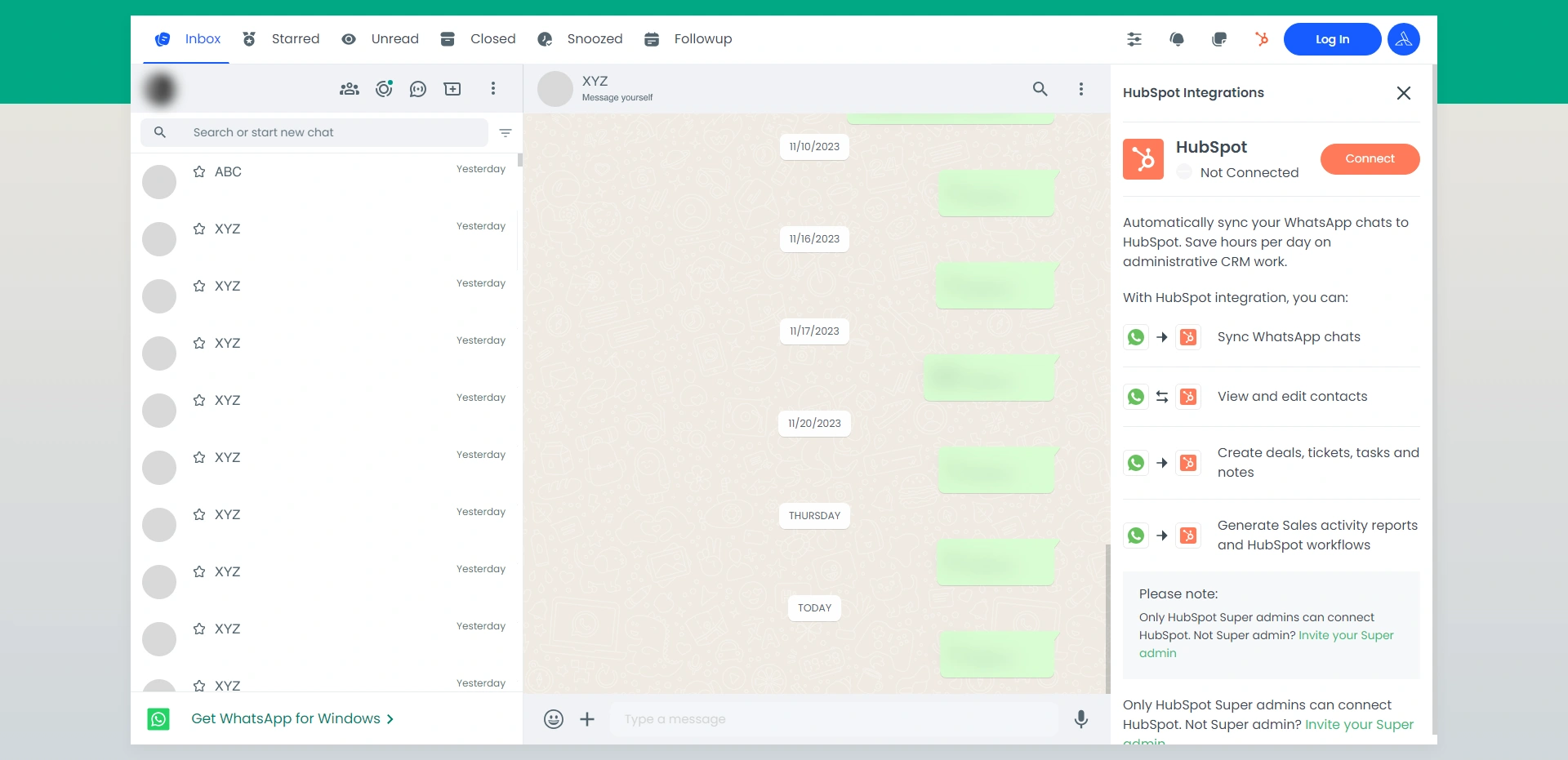
  • Hubspot%20Integration
  • Go to the top-right corner of the Login button.
  • Click the login button and it will redirect to the sign-in page.
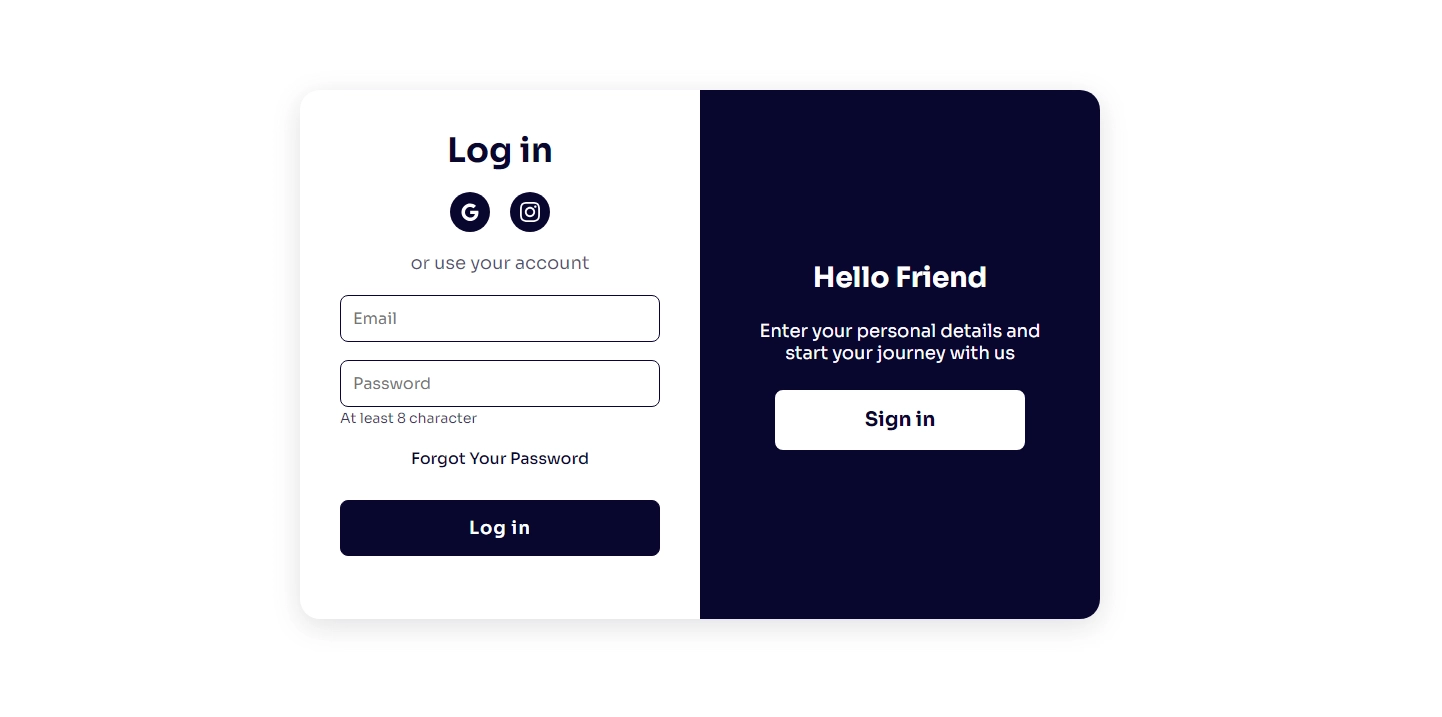
  • If you have already logged in before, then go to the login side and enter your ID and password.
  • login
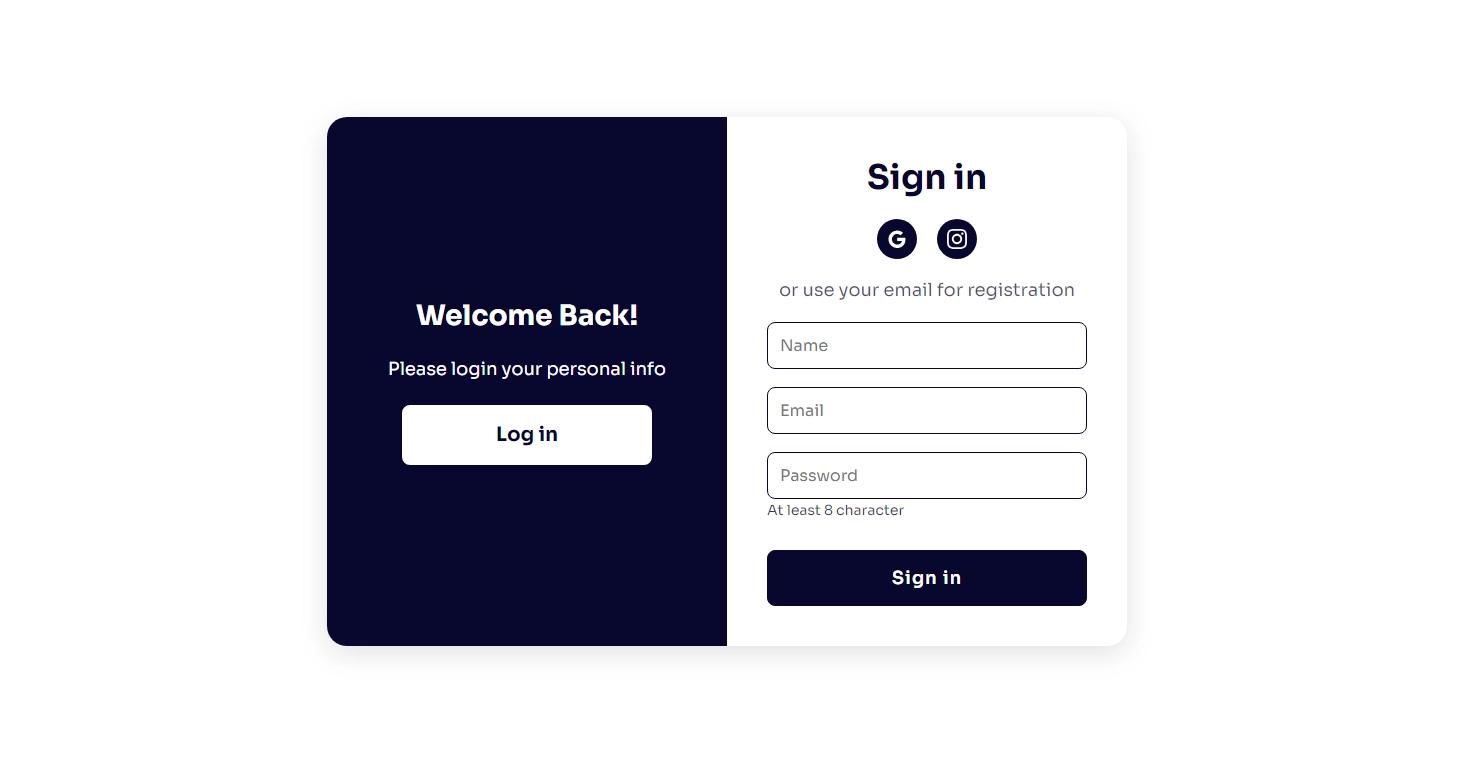
  • If you don’t have to create an account before, click the Sign-In button and fill in the details
    • Your name
    • Your email
    • Password
    • signin
  • After signing in, it redirects to the HubSpot Connect page.
  • If you have an account on HubSpot, then select your account and click the login button.
  • Choose%20account
  • If you don’t have an account on HubSpot, then create one.
  • After logging into HubSpot, it redirects to the Open WhatsApp page and clicks to open WhatsApp.
  • It redirects to your WhatsApp account and connects with your HubSpot CRM account.
Table of Contents

Features

  • After successfully logging into your account.
  • Click the top left corner contact button, select Contact, and view all activity on this contact page in the HubSpot Account.
  • Click on your WhatsApp contact conversation and see the right-hand corner.
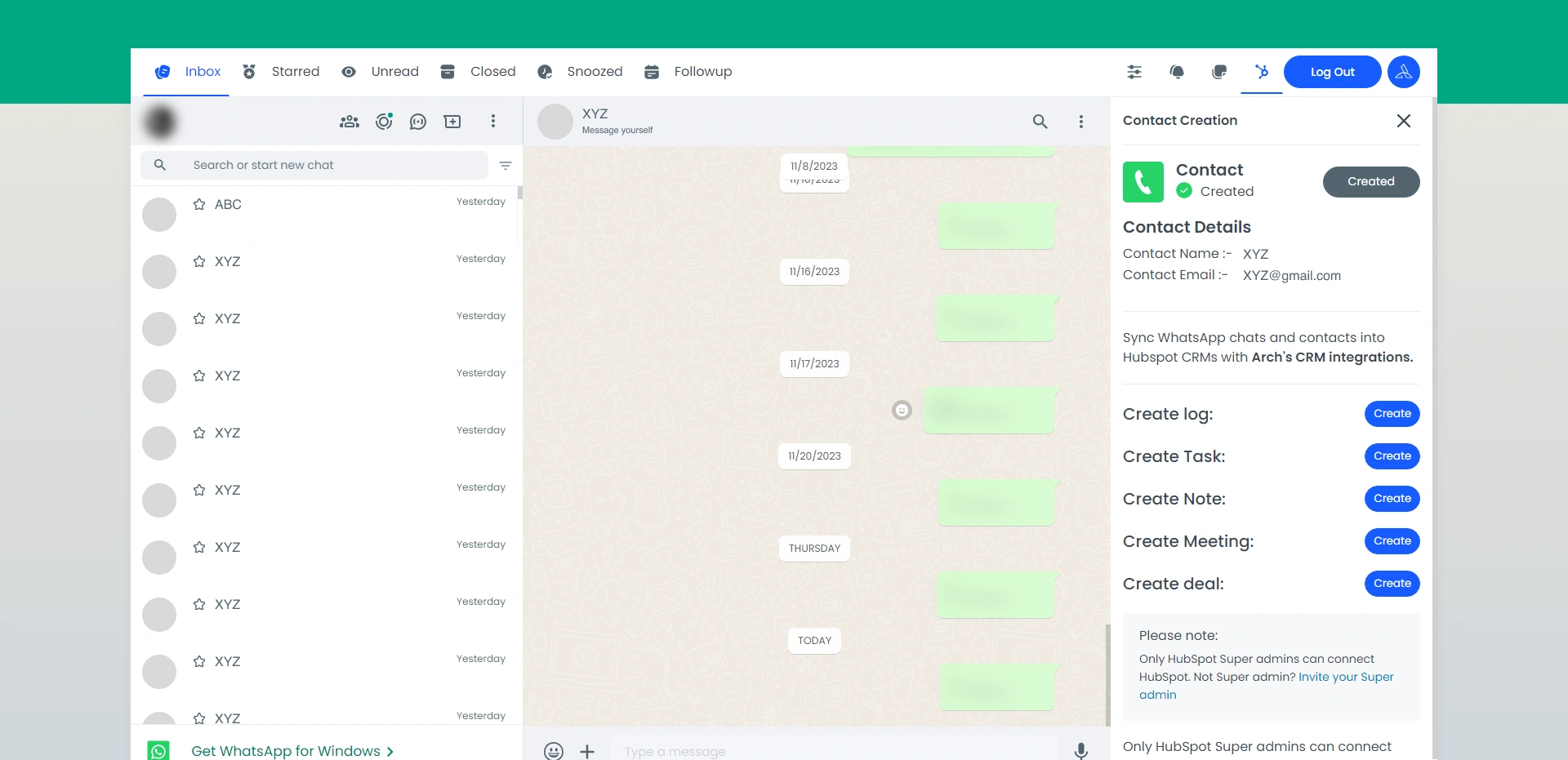
  • If this contact is not in the HubSpot CRM, then create this contact.
    • Chat with a lead on WhatsApp and easily create a new contact right from WhatsApp without breaking your workflow.
    • First Name
    • Last Name
    • Phone Number
    • Email
    • Website URL
    • Company Name
    • Click the Create button
    • Contact%20details
  • Go to your HubSpot account and refresh this page.
  • After refreshing, automatically add this contact to your HubSpot CRM.
  • You cannot add group contact
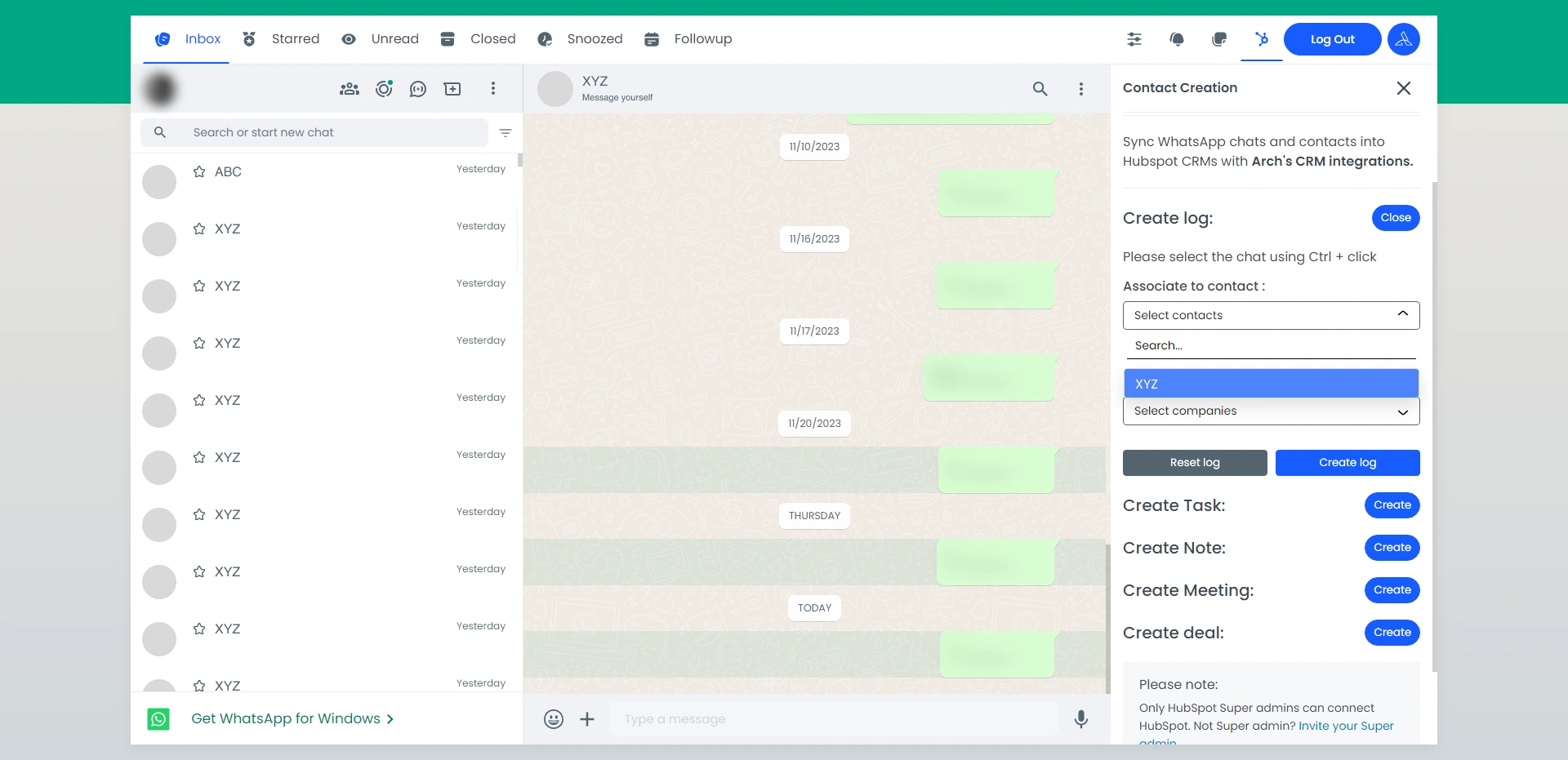
  • You can share your log into HubSpot
      Create%20log
    • Automatically log all parts and text files of your relevant business conversation into HubSpot for future reference and safekeeping.
    • Click the conversation and press Ctrl+C to select your conversation
    • After that, click Create Log and select your contact and company.
    • If you do not choose any contact or company, then it is sent to the current selected user conversation.
    • After creating the log, refresh the HubSpot page and view the log.
    • Create notes, task tickets, and meetings, and deal with WhatsApp messages.
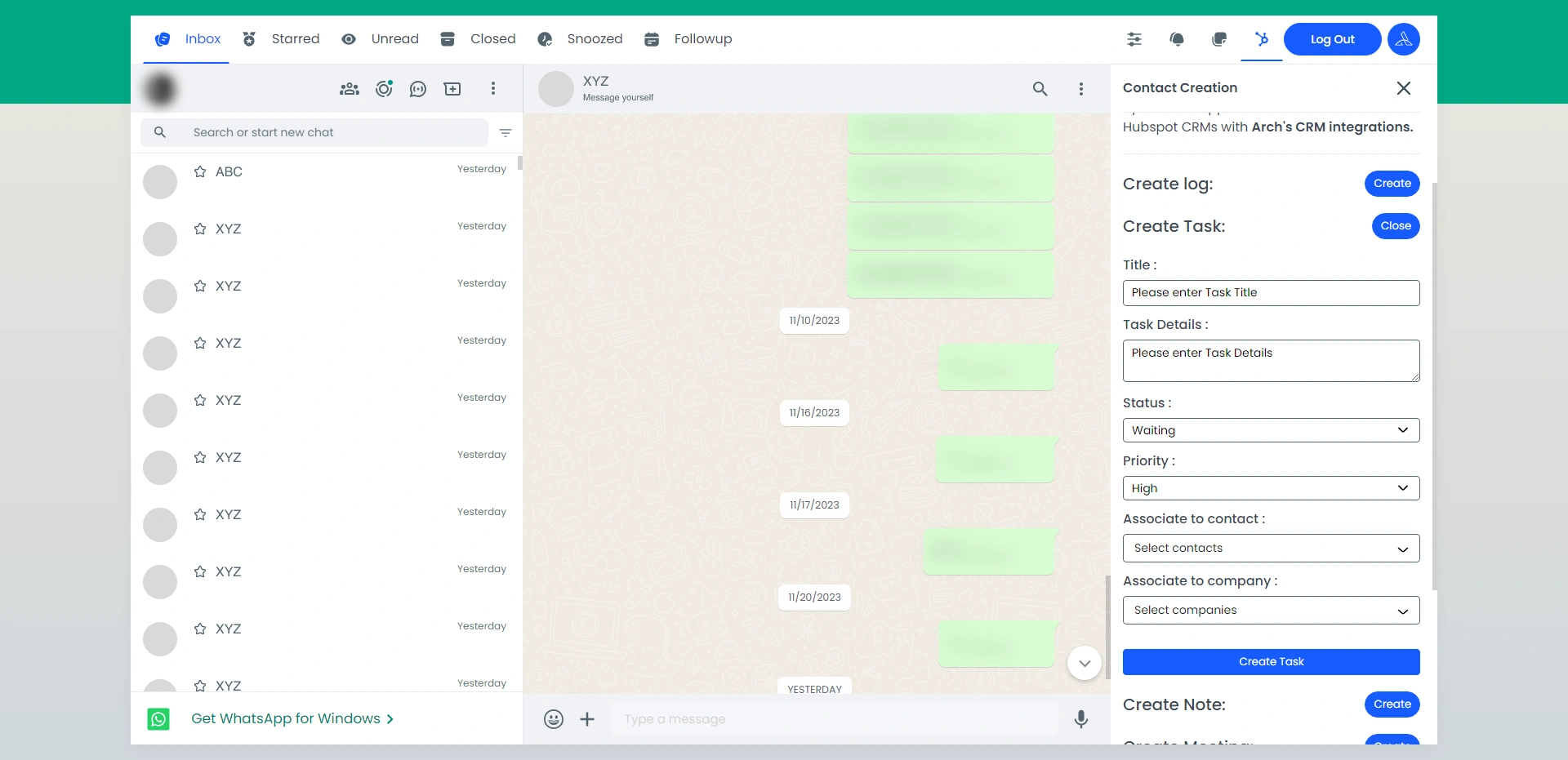
  • You can create your task list
      Create%20Task
    • Click Create task
    • Title
    • Task Details
    • Status
    • Priority
    • Select your contact to send this task
    • Select the Company
    • After creating the task refresh the HubSpot page and view the task list
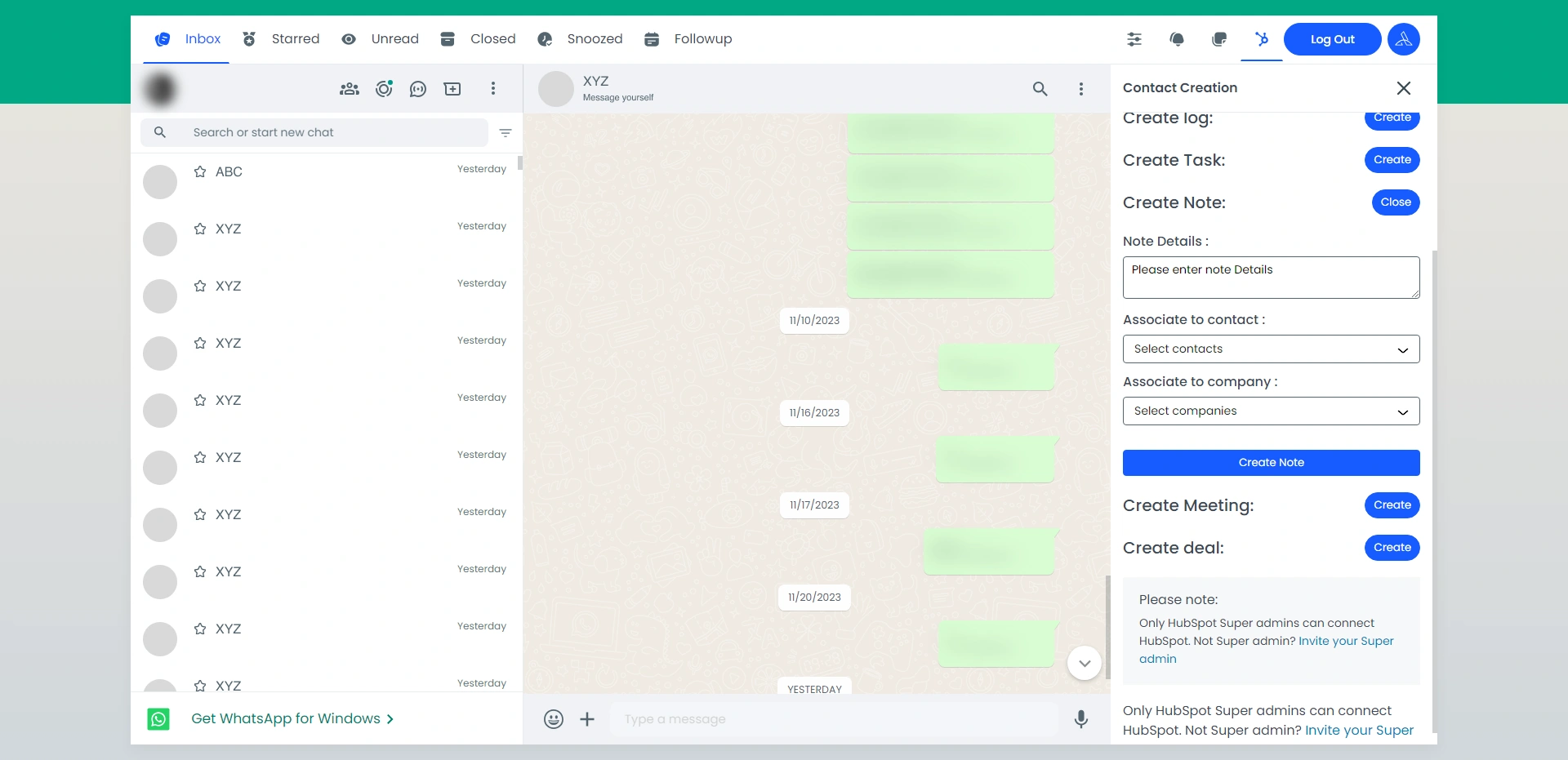
  • You can create Notes
      Create%20Note
    • Click create Notes
    • Enter Note details
    • Choose a company and contact
    • Click create note
    • After creating the note, refresh the HubSpot page and view the note.
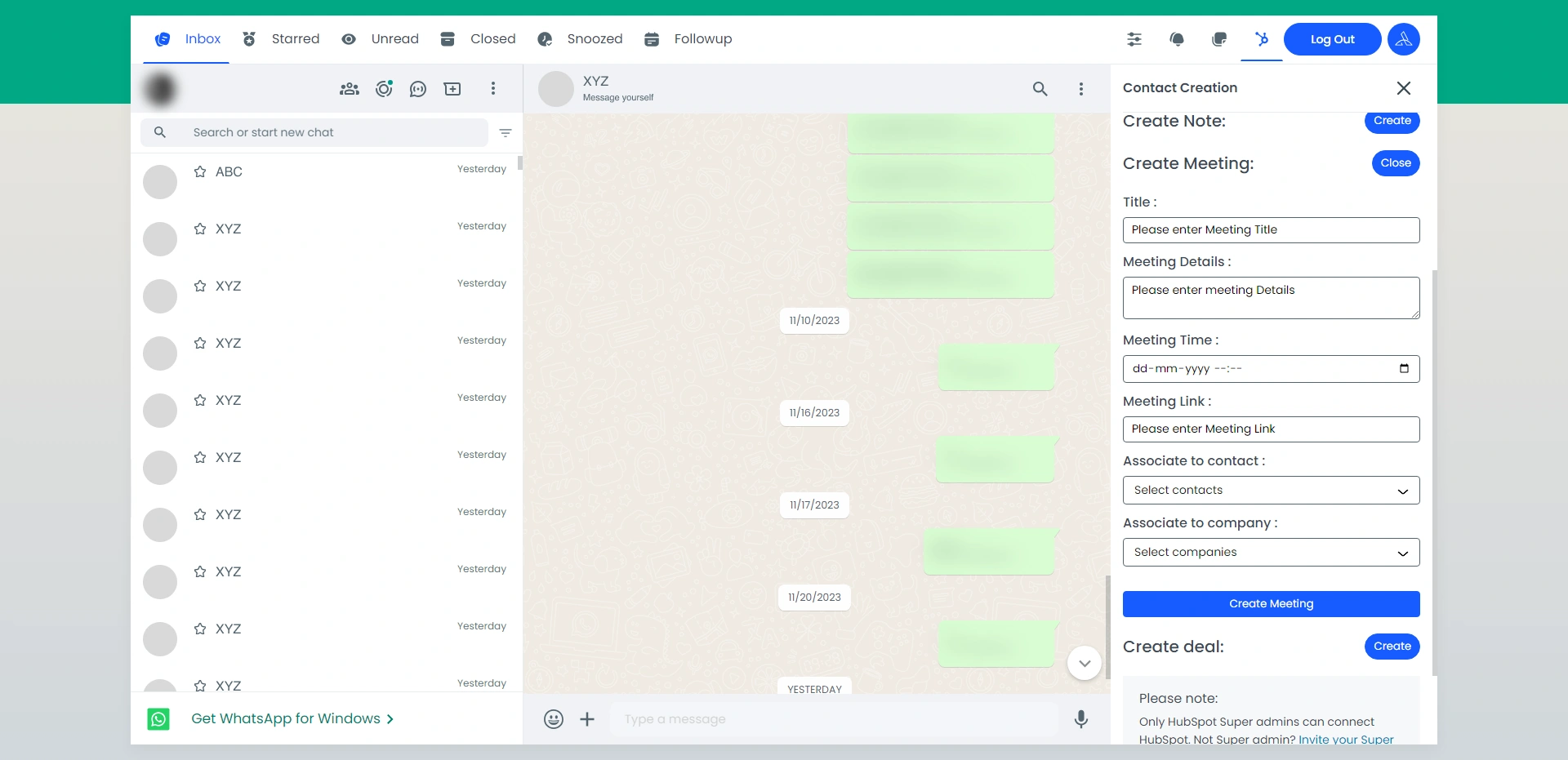
  • You can create your meeting schedule
      Create%20Meeting
    • Click Meeting
    • Add meeting title
    • Add meeting details
    • Select meeting time
    • Add meeting URLs
    • Choose the contact and the company that is invited to this meeting.
    • Click the Create Meeting button.
    • After creating the meeting, refresh the HubSpot page and view the meeting.
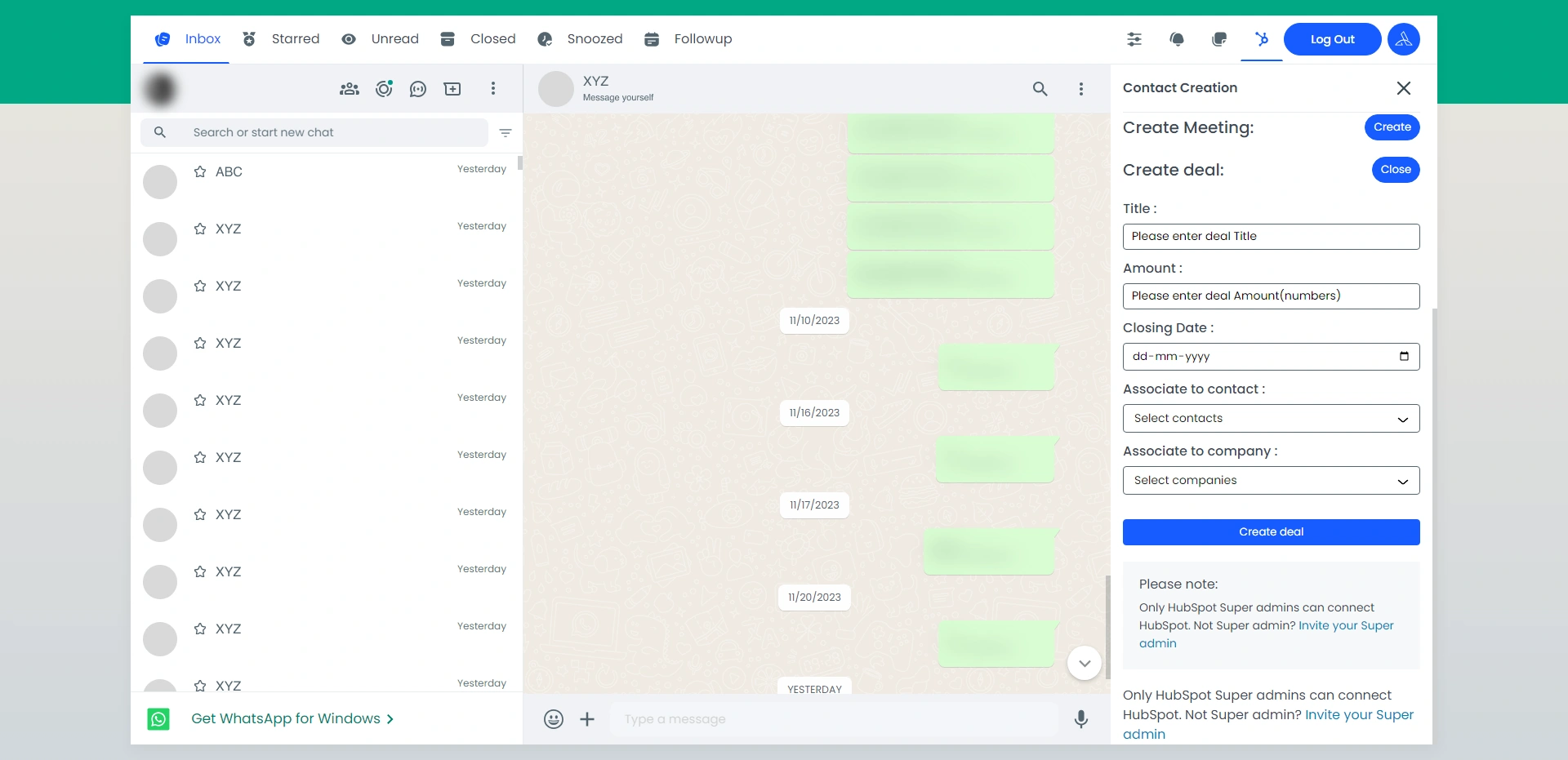
  • You can create your deal with WhatsApp
      Create%20Deal
    • Click deal
    • Add deals title
    • Enter the number amount of the deal (only add in $ )
    • Choose the closing date of the deal
    • Choose the contact and the company to whom to send this deal.
    • Click to create deals
    • After creating the deal, refresh the HubSpot page and view the deal.
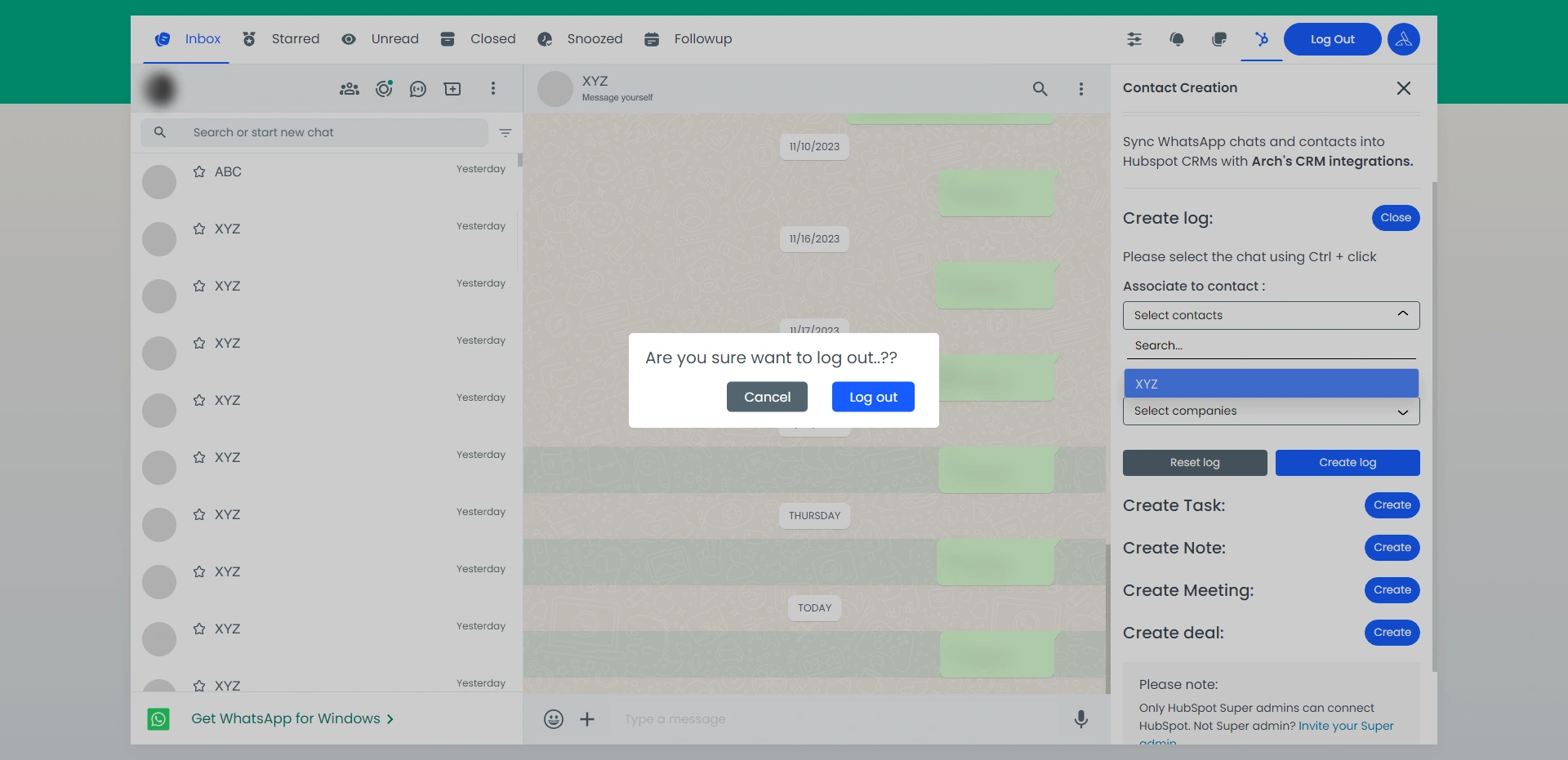
  • Logout
      Logout.webp
    • If you can logout your Arch Extension to your WhatsApp.
    • Click the top right-corner Logout Button.